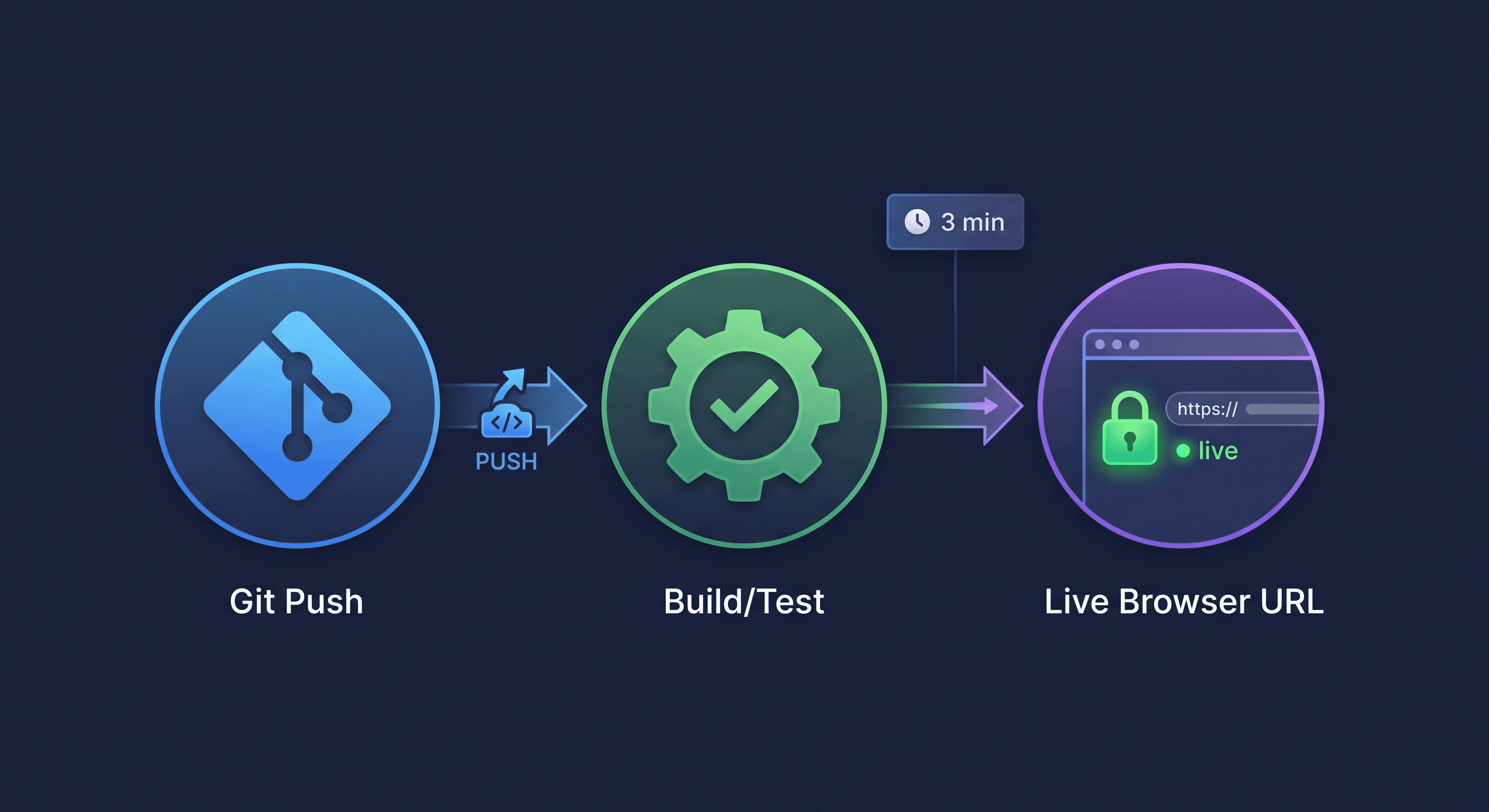
A real, minute-by-minute walkthrough: create a project, push your Next.js repo, and watch it come up at a live URL with automatic SSL — plus branch previews and custom domains.
Deploy Next.js in 3 Minutes: The Walkthrough
Three minutes is not a marketing number — it's the actual time between "I have a Next.js repo" and "it's live at a URL with HTTPS." This walkthrough is the exact path, minute by minute, with the two or three things that usually trip people up called out in advance.
What you need before starting: A Next.js app in a git repo (any standard setup — Create Next App, a custom config, or a monorepo app, as long as
package.jsonis present) and a MonkeysCloud account. That's it. No Dockerfile required, no cloud account, no SSH key gymnastics for the first deploy.
Minute 1: Create the Project and Connect the Repo
Log in to the dashboard and hit New Project.
Name the project and pick an organization (or create one — it's the same flow).
Connect your repo. Two options: push to the MonkeysCloud git remote we create for you, or push an existing repo up with
git remote add— the dashboard shows you the exact commands to copy. The second option is what most people with an existing repo want.
Bash
git remote add monkeyscloud https://git.monkeys.cloud/you/your-nextjs-app.git
git push monkeyscloud main
That push is the moment everything starts. The platform receives the push on its git server, auto-detects the stack, and kicks off the first build.
Minute 2: Watch it Build (The "Waiting" Minute)
The build is where Next.js apps either sail through or teach you something about your repo. Here's what's happening under the hood and what the platform is doing for you:
Stack detection. We look at your repo and identify Next.js from
package.jsonand the project layout — it's one of the 32+ stacks we auto-detect, so there's nothing to configure.Dependencies.
npm installruns (or your lockfile's equivalent —pnpmandyarnlockfiles are respected).Build.
next buildruns in an isolated build environment. The dashboard streams the build log live — a realtime stream so you can watch each step land.Output. For Next.js, we capture the production build output and serve it through our runtime, with static assets handled by our edge layer.
Two Common Gotchas (Solved in Advance)
Build command. If your app needs a specific build command or environment variables at build time, set them in the project's settings before the first build — anything you add there is injected into both the build and the runtime.
Node version. We detect the Node major version your project needs from
enginesor the lockfile and use it for the build, so you don't get the classic "works on my machine, fails on Node 20" surprise.
Minute 3: Live URL, Automatic SSL, Done
When the build succeeds, the environment comes up and you get the thing you actually wanted: a URL.
Plaintext
https://your-project-xxxx.monkeys.cloud
The automatic SSL part is worth pausing on: a certificate is issued and installed for your environment URL without you touching ACME, DNS, or certificate renewal. When you later add a custom domain (a simple two-field form), the same machinery issues a certificate and wires the DNS validation for you automatically.
From here, the normal workflow kicks in:
Every push to
maindeploys the production environment.Every push to another branch creates a branch preview — a throwaway environment with its own URL, so a PR's UI changes can be reviewed by anyone on the team before merge.
What "3 Minutes" Really Measures
The stopwatch claim is about the happy path, and we want to be honest about the shape of it: the push takes seconds, the build is the bulk of the time, and everything after the build is instant. For a fresh Next.js app, next build completes in well under the remaining time. For a large monorepo with many pages, the build takes what it takes — but you didn't have to do any of the setup work, which is where the 3 minutes would otherwise become 3 days.
The number that actually matters: The time between "I have code" and "my team can open a URL." That's the friction we removed, and it's minutes regardless of how big your app gets.
After the First Deploy: The Loop
Once the first deploy lands, the platform becomes a loop you barely think about:
Push to
main→ production rolls out (rolling, blue-green, or canary — yourmonkeyscloud.ymldecides).Open a PR → branch preview with its own URL → MonkeysAI reviews the diff before you merge.
Add a domain → auto-SSL → the environment is your production home.
Something fails → the AI assistant reads the build log, tells you why it failed, and suggests the fix.
Teams that start on this loop report the same thing: deployment stops being an event and becomes background noise. Which is the goal.
Closing Thought
Three minutes to live is a nice demo, but the real promise is the day after — when every push ships, every PR is reviewable, and SSL, domains, and environments have stopped being chores. That's what deploying Next.js on MonkeysCloud feels like from minute three onward.
Every MonkeysCloud project ships with 2 free servers and 2 free databases — git hosting, environments, CI/CD, and MonkeysAI included. Try it free